
Common ATS Resume Mistakes & How to Fix Them
Optimize your resume for ATS by avoiding mistakes in formatting, keywords, and file types. Start getting more job interviews!
Most resumes never make it past Applicant Tracking Systems (ATS). Why? Common mistakes like poor formatting, missing keywords, or using the wrong file type. Here’s what you need to know to optimize your resume for ATS: Avoiding these errors is most of how you format an ATS-friendly resume that gets read.
Key Fixes for ATS Success:
- Formatting: Stick to a simple, single-column layout. Avoid images, tables, and headers/footers.
- Keywords: Match job descriptions by using relevant skills, certifications, and industry-standard terms.
- File Type: Submit in ATS-friendly formats like
.docxor basic.pdf. - Contact Info: Keep it professional and place it directly in the document body.
- File Name: Use clear, simple filenames like
FirstName-LastName-Resume.docx.
Why It Matters: ATS tools filter resumes based on formatting and keyword relevance. Even small errors can prevent your resume from reaching a recruiter. Follow these tips to ensure your resume is ATS-ready and stands out in the hiring process.
The Perfect Resume to Beat the ATS: Common Mistakes and Solutions
Resume Formatting Errors
To ensure your resume gets past ATS (Applicant Tracking System) scans, proper formatting is a must. Poor formatting can lead to misclassification or even rejection, no matter how qualified you are. Here’s how to avoid common pitfalls and make your resume ATS-friendly. Picking the right base also matters, so see our best resume template guide for formats that parse cleanly.
Images and Layout Problems
ATS systems struggle with complex visuals, often misreading or skipping over them entirely. What to avoid:
- Graphics, icons, or logos
- Multi-column layouts
- Text boxes or sidebars
- Background colors or images
Stick to a simple, single-column layout with clear section breaks. This approach ensures your resume is easy for ATS to process.
Font and Text Issues
Your choice of font and text formatting can make or break your resume’s readability. Common mistakes include:
- Using non-standard or decorative fonts
- Overloading with combined formatting (like bold and italic together)
- Font sizes smaller than 10pt or larger than 14pt
- Inserting special characters or symbols (e.g., →, •, ©)
Font tips:
- Stick to standard fonts like Arial, Times New Roman, or Helvetica.
- Use a consistent font size between 11pt and 12pt.
- Keep formatting minimal – use bold or italic sparingly, not together.
- Avoid special characters and spell out abbreviations when possible.
Header and Table Mistakes
Headers, footers, and tables are notorious for tripping up ATS systems. Here are common issues to watch out for:
- Putting contact info in headers or footers
- Using tables for job history or skills
- Including page numbers in headers or footers
What works better:
- Keep all content in the main body of the document.
- Use standard section titles like “Experience,” “Education,” and “Skills.”
- Replace tables with straightforward bullet points.
- Place your contact info at the top of the main document, not in a header.
Resume Content Mistakes
Once you’ve nailed the formatting, it’s time to focus on your resume’s content. While formatting gets your application noticed, the content is what ensures it ranks well with ATS (Applicant Tracking Systems).
Missing Keywords
ATS tools are designed to scan resumes for specific keywords that match the job description. If your resume lacks these terms, it might never make it to a recruiter’s desk.
Common mistakes with keywords include:
- Using vague or generic language instead of industry-specific terms
- Failing to reflect the keywords listed in the job description
- Overloading your resume with keywords in an unnatural way
- Omitting technical skills, certifications, or required software knowledge
How to improve keyword usage:
- Carefully analyze the job posting and highlight the main requirements
- Include both full terms and their abbreviations (e.g., “Certified Public Accountant (CPA)”)
- Incorporate keywords naturally within your accomplishments and responsibilities
- Add a dedicated section for “Skills” or “Core Competencies” to showcase key terms
Don’t forget to tailor your resume for ATS! Learn how to do it in our AI Resume Optimization Guide.
Next, let’s tackle how job titles can impact your ATS results.
Job Title Problems
Unclear or unconventional job titles can confuse ATS systems. Titles that stray too far from industry norms may hurt your chances of being matched to the right role.
Examples of problematic job titles:
- Creative but unclear titles like “Sales Wizard” or “Tech Guru”
- Hybrid titles that combine multiple roles in a non-standard way
- Titles that don’t align with industry standards or job descriptions
Tips for fixing job titles:
- Stick to standard titles recognized in your field (e.g., “Software Engineer” instead of “Code Ninja”)
- If your official title differs from industry norms, include both (e.g., “Client Success Specialist (Account Manager)”)
- Align your title with the job posting when it accurately reflects your role
- Use consistent, professional titles across your resume
Finally, don’t overlook the importance of properly formatted contact details.
Contact Info Errors
Even small mistakes in your contact information can lead to missed opportunities or automatic rejection by ATS software. Common errors include:
- Using special characters in phone numbers (e.g., × or •)
- Linking to social media profiles with unprofessional usernames
- Leaving out location details, which are often required for ATS categorization
Checklist for contact details:
- Place your contact information directly in the document body
- Use a standard phone format: (555) 555-5555
- Provide a professional email address (e.g., [email protected])
- Include your city and state, even for remote roles
- Ensure your LinkedIn URL is up-to-date and matches your name
ATS systems rely on clear, standardized information to process applications effectively. By keeping your resume content precise and aligned with industry expectations, you increase your chances of passing the automated screening process.
Beyond having correct contact details, it’s crucial to strategically manage your job search. Check out our full guide on AI job search tools.
File Format Problems
Getting the technical setup of your resume right is just as important as using the right keywords and layout. If your file format isn’t ATS-friendly, your application might not even make it through.
Wrong File Types
Some file formats are a no-go for ATS systems. Avoid these:
- .pages (Apple’s word processor format)
- .txt files
- Image formats like .jpg or .png
- .rtf (Rich Text Format)
- Password-protected PDFs
- PDFs with intricate layouts or graphics
The best formats for ATS? Stick to these:
- .docx (Microsoft Word): This format is widely accepted, maintains your formatting, and is easy to edit.
- Simple .pdf: Use a PDF created from a Word document, but avoid interactive elements or overly complex designs.
To be safe, have both a .docx file for ATS submissions and a clean, simple PDF for other purposes.
File Name Errors
Believe it or not, even your resume’s filename can determine how smoothly your application gets processed.
What to avoid:
- Generic names like
resume.docxorcv.pdf - Special characters, e.g.,
José's_Résumé_2025!.docx - Spaces in filenames, like
John Smith Resume Final Version.docx - Overcomplicated version numbers, e.g.,
resume_v3_final_FINAL.docx - Long, bulky filenames, such as
John_Smith_Software_Engineer_Resume_March_2025_Updated.docx
What works:
Stick to this simple format: FirstName-LastName-Resume.docx.
Examples:
John-Smith-Resume.docxJane-Doe-Resume-2025.pdf
Keep these technical tips in mind:
- Use only English letters and hyphens (e.g.,
John-Smith-Resume.docx). - Keep the filename under 30 characters.
- Always include your name to make it easy to identify.
A well-named file can make a big difference in how your resume is stored and retrieved by ATS systems.
Making Your Resume ATS-Ready
Clean Formatting Guide
To ensure your resume gets through Applicant Tracking Systems (ATS), you need a clean, simple format that’s easy for software to process.
Basic Layout
- Use 1-inch margins on all sides.
- Stick to 1.0-1.15 line spacing.
- Stick with a single-column layout for better ATS compatibility.
- Align all text to the left – avoid centering or right-aligning anything.
Section Organization
- Place your contact details right at the top.
- Use straightforward section headers like “Experience”, “Education”, and “Skills.”
- Avoid using creative or unusual section titles.
- Add enough white space between sections for easy reading.
Text Formatting
- Stick with easy-to-read fonts like Arial, Calibri, or Times New Roman (10-12pt size).
- Use bold text for section headers and job titles.
- Stick to standard round bullets for lists.
Once your layout is solid, the next step is making sure you’ve included the right keywords to match the job description.
Keyword Selection Guide
Here’s how to choose and use the right keywords:
1. Analyze the Job Posting
Scan the job description carefully. Look for keywords in these areas:
- The job title
- Required skills
- Technical qualifications
- Certifications
2. Use Standard Terms
Match industry-standard language for clarity:
- Write “Project Manager” instead of “Project Lead.”
- Specify “Microsoft Excel” instead of just “Excel.”
- Always spell out acronyms, like “Search Engine Optimization (SEO).”
3. Place Keywords Naturally
Weave keywords into your resume without forcing them:
- Include them in job descriptions.
- Add them to the skills section.
- Highlight them in your achievement statements.
- Use exact wording from the job posting where possible.
Once your keywords are in place, it’s time to finalize your file settings.
File Setup Steps
After fine-tuning your formatting and keywords, ensure your file is fully ATS-compatible.
Document Settings:
- Save your resume as a Microsoft Word file (
.docx). - Keep a PDF version as a backup.
- Use UTF-8 encoding for compatibility.
- Ensure the file size is under 5MB.
- Remove any tracked changes or comments.
Final Checklist:
Double-check for proper spelling, plain-text readability, hidden characters, consistent MM/YYYY date formats, and text-only links.
While optimizing for ATS, make sure your resume still reads naturally for human reviewers. Both matter.
Use LiftmyCV to Automate Your Job Search & Auto-Fill Applications
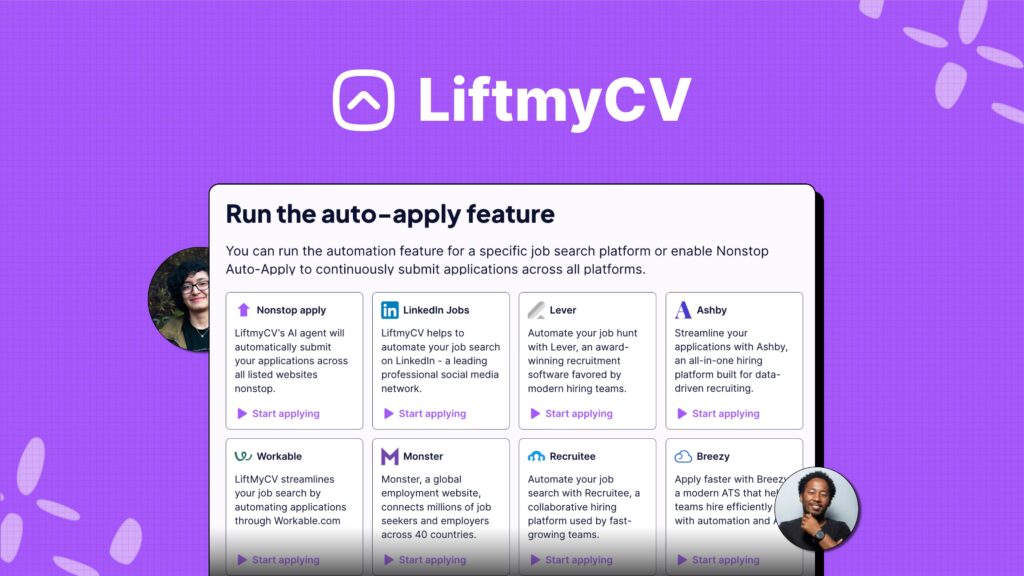
Once your resume is polished, LiftmyCV helps you simplify the job application process with tools designed for ATS compatibility and quick submissions.
LiftmyCV Tools
- Multi-Platform Submission: LiftmyCV seamlessly integrates with LinkedIn Jobs, Monster, Lever, Workable, and +3 more platforms. It features a Chrome Extension that powers the AI agent, enabling auto-apply feature and application limits to help manage your job search efficiently.
- Profile Management: The platform includes an AI-powered profile builder that scores your profile, automates resume submissions, and even confirms applications automatically for a streamlined job search experience.
Pricing Options:
| Plan | Price | Model | Features | Limit |
|---|---|---|---|---|
| 50 Lifts | $4.99 /month | Subscription | AI autofill & auto-apply, automated job search, nonstop auto-apply, 7 job sites, premium support | 50 CV submissions |
| 500 Lifts | $14.99 /once | Pay-as-you-go | AI autofill & auto-apply, automated job search, nonstop auto-apply, 7 job sites, premium support | 500 CV submissions |
| 1000 Lifts | $24.99 /once | Pay-as-you-go | AI autofill & auto-apply, automated job search, nonstop auto-apply, 7 job sites, premium support | 1000 CV submissions |
| 2000 Lifts | $39.99 /once | Pay-as-you-go | AI autofill & auto-apply, automated job search, nonstop auto-apply, 7 job sites, premium support | 2000 CV submissions |
LiftmyCV also helps tailor your profile for ATS systems, enhancing your chances of getting noticed.
LiftmyCV ATS Features
- AI Optimization: The AI-powered profile builder scores your profile for ATS compatibility.
- Application Processing: LiftmyCV auto-fills application forms using your resume data and integrates with ATS platforms like Lever and Recruitee, ensuring your resume formatting stays intact during submissions.
Conclusion
Key Takeaways
To get your resume past ATS systems and into the hands of recruiters, focus on precise formatting and strategic keyword use. Here’s what you need to know:
- Formatting Basics: Stick to a clean, single-column layout. Use standard fonts like Arial or Calibri (10-12pt), and avoid overly complex design elements.
- Keyword Usage: Incorporate job-related keywords naturally, ensuring they align with industry-standard job titles.
- File Type and Naming: Save your resume as a
.docxor.pdffile with a clear and professional name (e.g.,FirstName_LastName_Resume.pdf).
These steps ensure your resume is technically sound for ATS systems.
Balancing ATS and Human Appeal
While ATS optimization is crucial, your resume should also engage human recruiters. Here’s how to strike the right balance:
- Natural Keyword Placement: Weave keywords seamlessly into your experience descriptions. For instance, instead of keyword stuffing, write something like, “Managed cross-functional projects with a team of 15.”
- Simple, Clear Design: Use bold text for headers and job titles to create a visual hierarchy. This helps both ATS systems and recruiters navigate your resume easily.
- Standardized Sections: Stick to familiar section headers like “Work Experience” and “Education” to ensure clarity and alignment with expectations.
Platforms like LiftmyCV can simplify the job search process by using AI to optimize your profile for ATS compatibility and auto-apply across multiple job boards and ATS systems, including LinkedIn Jobs, Monster, Lever, Workable, Breezy, Recruitee, and Ashby – with more coming soon.


Read Next
AI Resume Summary Generator: How to Write One (With Examples)
An AI resume summary generator writes a tailored professional summary in seconds. Get resume summary examples for career changers, grads, and pros.
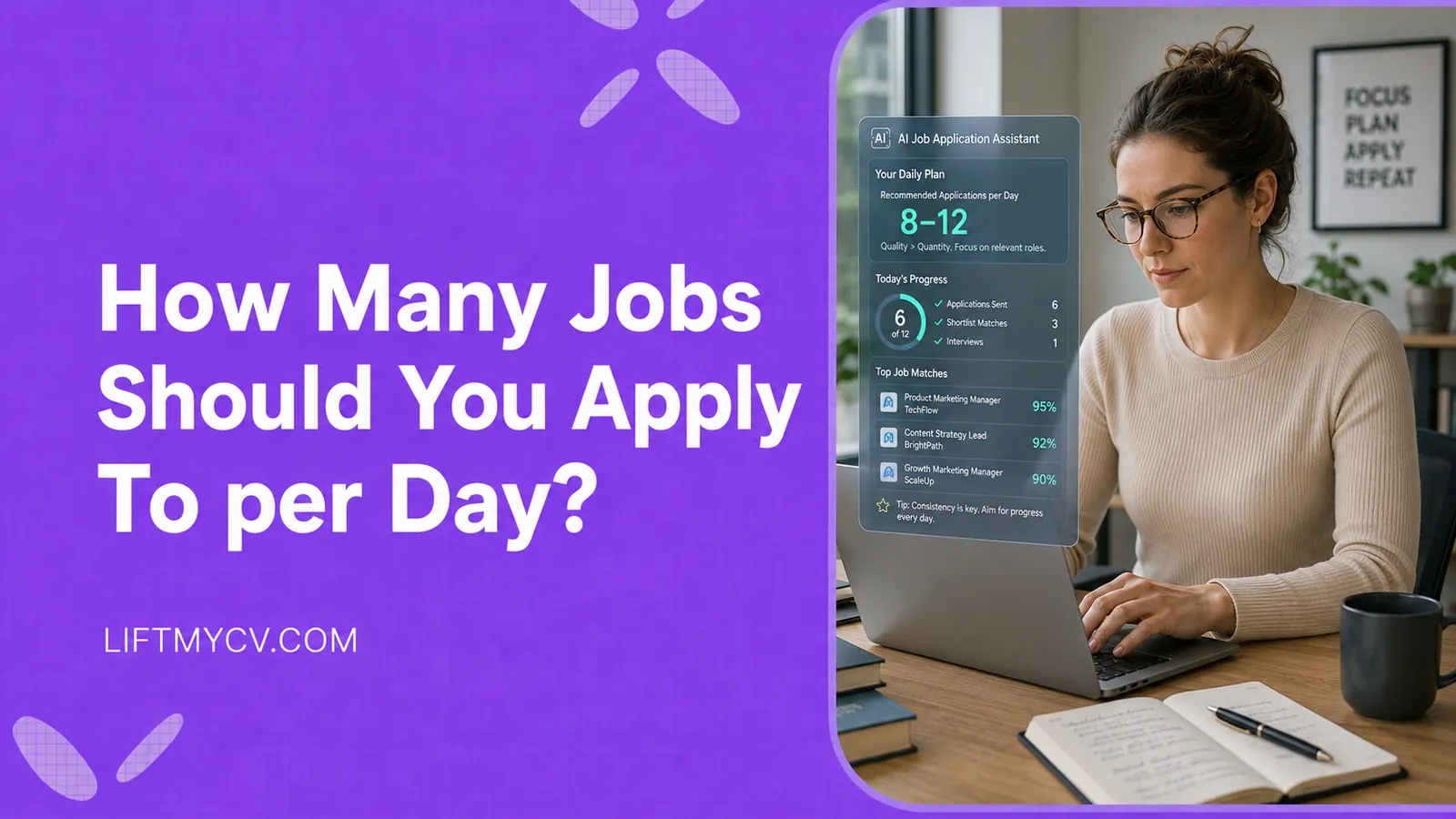
How Many Jobs Should You Apply To per Day? The Honest Answer
The real daily number, why consistency beats big bursts, and how to hit your target without burning out.
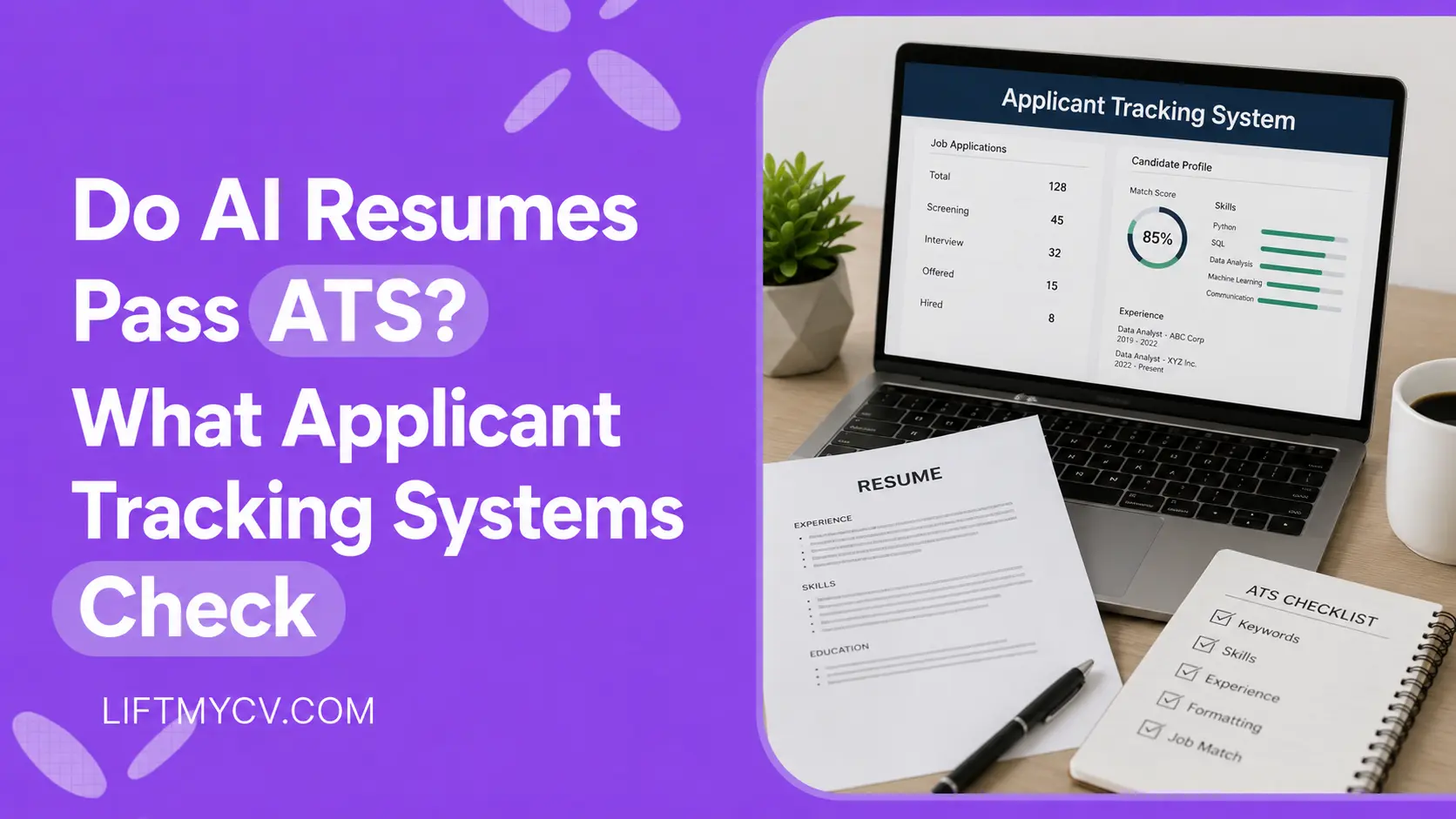
Do AI Resumes Pass ATS? What Applicant Tracking Systems Check
ATS does not detect AI. See what it checks, why some AI resumes get rejected, and how to make yours pass the screen.